Categories
Home Remodeling

Kitchen is coming together

One box of Chemex filters later, the kitchen is almost finished. This is my contribution to the design, moving the carport door from the carport to the end wall and adding this Charleston style porch and step. My builder’s designer got the masses and sizes right.

20150817-IMG_1429

My project manager Evan found a use for some of the granite remanent. The dogs have a dinner table and I have a similar shelf at 36 inches to stage groceries for storage, etc. Below is room for boots, etc. At top is a shelf for cook books, etc.20150818-IMG_1433

In the original kitchen, this counter was in a corner formed by the window wall and carport wall. The hob was to the right making dish washing and cooking miserable experiences. The sink was a 2 bowl sink, the same size as this one but with full depth bowls. Washing baking pans was a miserable chore.

20150821-IMG_1443

By taking out that wall from the back to the right side of the carport door and building a new L-shaped wall, Evan created the laundry alcove, family entry, and pantry in the background. A new peninsula holds the hob, downdraft vent, storage, and a counter height breakfast bar and buffet.

20150824-IMG_1451

The photo above shows the hob (British for cook top) cooking its first meal. Nothing ambitious, just spaghetti and sauce to learn how the beast works and get a feel for the new induction heating. A bit slow with 10 liters of  water to boil but about similar control to the old radiant hob for most tasks.

And cleaning up is much easier with the new sink. It now has proper workspace around it and the half-depth half-bowls make dish washing easy while we await the dish washer. Later today. Plumbers are wrapping that task up as I write this post. This idea is so obvious but this design is new to the market and only a couple of sink makers offer it (suggesting that it is still under patent).

20150824-IMG_1452

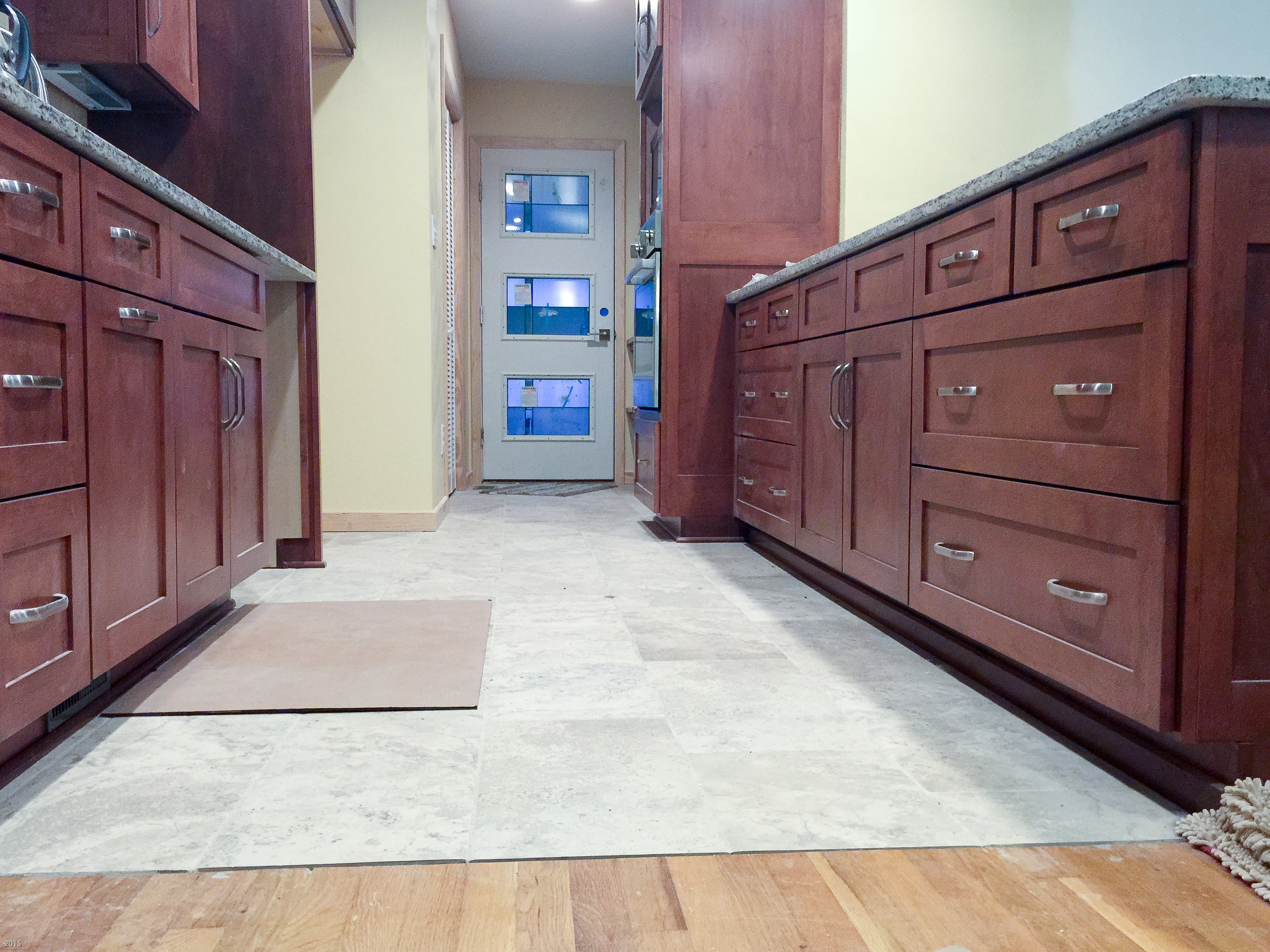
And no kitchen is complete without a greyhound gallop. The photo below is a dog’s eye view of the project taken about a week ago before appliance installation began.

20150821-IMG_1446

Categories
Home automation

Smoke Detectors

I just recently replaced four Kidde line powered smoke detectors with Nest Protect detectors. The new Nest Protects are expensive ($99) but they are worth it. The new detectors have dual wavelength optical detectors. Each of the two optical sensors is optimized for a different range of particle sizes to cover both fast burning fires and smoldering fires.

The detectors also include a carbon monoxide sensor. Carbon monoxide sensing is important if you have a natural draft gas burning appliance in conditioned space. Operation of vent fans, whole house fans, or a blocked flue can reverse the vent flow of these appliance to allow exhaust gas into the living space. Carbon monoxide is dangerous because it is an odorless poisonous gas and natural gas combustion products are low odor.  Most carbon monoxide deaths occur at night because there are no cues to wake a sleeper.

The Nest dual optical detectors use LED light obscuration to sense smoke. Most detectors on the market are ionization detectors that use a radioisotope to ionizing the air in a cell that is open to the space being monitored. The presence of smoke increases the ionization. The current in the cell increases causing an alarm

Why I Retired the Kidde Detectors

The Kidde detectors started chirping one evening. I replaced the batteries and they continued to chirp. And they couldn’t tell me why. The Nest Detectors both Gen 1 (the flat top detectors) and Gen 2 detectors (convex top) talk to you in natural language using a recorded voice. In the US, English or Spanish language is selectable at installation. The Kidde detectors gave no indication why they were chirping after the batteries had been replaced. The Kidde manual was no help. After 20 years of this, the Kidde detectors had to go.

The Great Chili Cook

When I first installed the Nest Protects, I kept the Kidde detectors in service for a while. One evening (before the kitchen remodel) I made some chili and browned meat for it. As usual, I left the heat too high for too long, the Lodge cast iron pan overheated, and the contents began to smoke. I reduced the heat but not enough.

The smoke in the house slowly crept up. Eventually, the Nest Protects gave a heads up alert through the house announcing “Heads up, smoke in the hallway”, the near detector. Lodge pans hold a lot of heat which makes them great for searing a steak or scrambling eggs but once they are too hot, they’re going to stay too hot and smoke for a good bit.

The smoke level continued to increase to alarm level with the Nest Protects going into alarm first, then the Kidde detectors. Being traditional detectors, the Kidde detectors could do no more.

The Nest Protects had already alerted me to the increasing smoke with the heads up report and I could look for the cause. When the alarm went off, I knew which detector was in alarm and had already been notified of a potential problem by heads up message. By giving the heads up alert first, you can look for ad deal with the smoldering ash tray scenario. Knowing which detector is in alarm may influence your choice of evacuation routes.

Only One Cry Wolf Alert

One evening at 4 in the morning, one of the Nest Protects gave a smoke cry wolf heads up. I went to check the location, found conditions normal. After a bit, the detector returned to normal and there have been no further cry wolfs from it.

Why Nest Protects?

Nest Protects don’t chirp at you. Instead, they tell you in plain language why they are unhappy or confused. When an heads up or an alarm occurs, they announce the location and alarm condition in plain language. Carbon monoxide and smoke alarms have different tones.

During the installation process you connect each Nest product to your WiFi network and add it to your Nest account. Periodically, the detectors communicate with Nest. When an abnormal condition is detected anywhere in the house, all of the detectors report the condition. If you are in the den and the garage detector goes into pre-alarm, the den detector will announce the problem. If the condition worsens, the den detector will announce the alarm. A problem in one part of the house will be announced at each detector location.

Abnormal conditions include system problems and heads up alerts. Low batteries, power out, etc are announced with the heads-up message. Any smoke or carbon monoxide heads up would also be announced. A proximity detector lets the Nest Protect know that the room is occupied. This process only happens at detectors in occupied rooms.

During the installation process, you give each detector a location name from those in a list. That’s how the detector knows where it is. During the chili making incident mentioned above, the hall detector when into alarm followed by the detectors in my study and my bedroom. The third bedroom door was closed so it just followed along. as each detector went into alarm, all detectors announced the alarm and the announcements could be heard through the alarm din.

Nest Promise Feature

When you turn in at night, a light level sensor in the Nest protect senses the drop in light level. If all is well, the Nest Protect will show a green light to report that all is well. If there is a problem with any detector in the network, the detector will, instead, show a yellow ring. You can determine the issue by tapping the Nest button (big target inside the ring. The detector will announce the problem, as in “Heads up, hallway is off line”. Alternately, you can check the system status using the Nest App.

The proximity sensor will light the indicator ring with a red light during an alarm or a white light when it senses movement and the lights are out. This is a useful aid in finding the door if you have to bug out. It is also a useful indication of the greyhounds moving about to change beds. If you think a dog has come or gone, you can look for the white ring before looking for the dog who just may want to go out.

More About Installation

As a network device, Nest Protect is designed to be managed by an Android or iPhone phone and that it will be installed in a home having a working 2.4 GHz WiFi network and Internet service.

Prerequisites

Before installing Nest Protects, you will need the following.

  • Home 2.4 GHz WiFi network operating.
  • Network name and password
  • Electrical box installed by you electrician for each wired Nest Protect
  • Electrical  safety tester, preferably electronic non-contact type.
  • Wired detector power turned off.
  • Nest IOS or Android App downloaded and installed on a mobile

Installing Nest App

Install the Nest App from the Apple iPhone App Store or from Google Play. Once installed, start the Nest app and create a Nest account. You can also view this account using a web browser at http://home.nest.com.

After account creation, add a “home” giving a name, zip code, etc.

Installing a Nest Protect

Nest Protects work their magic using the house WiFi network to communicate with each other and with Nest. This means that you need a reliable 2.4 GHz WiFi network operating as a prerequisite for the installation process. With the 2nd generation detectors, installation is simple.

  1. Mount the installation ring on the wall or in-wall electrical box if the detector is line powered.
  2. With the power off, install the line powered unit’s electrical plug pig tail. White to white, black to black. Red is not used as Nest Protects use radio communications for house wide alarms.
  3. Install the Nest application on an IOS or Android device (the other prerequisite)
  4. Pull the battery tab on the detector.
  5. On the app home screen, pick the gear icon
  6. On the settings screen, tap the Add product icon
  7. On the choose product screen, tape the Nest Protect item
  8. Using the phone camera in portrait orientation, scan the QR code on the Nest Protect label.
  9. Complete the remaining screens to enter the WiFi password, choose language, and name the device.
  10. Add any additional devices to the Nest App at this time. Additional devices pick up the settings from the first added.
  11. Once network setup is complete, mount each device on its mounting ring. Interrupted screw tabs engage and hold the device to the ring. if the unit is line powered, plug in the connector before mounting it and tuck the excess cable into the box.

Nest and Legacy Detectors

The industry made a deliberate choice for detectors not to communicate from brand to brand. In fact, industry standards forbid the practice as protocol compatibility cannot be assured. So if you have a mix of Kidde detectors and Nest Protects, the two will ignore each other. The Kidde wired detectors use a third red wire to exchange alarm state. The Nest Protects use an application specific application protocol for this purpose.

Software Updates

From time to time, Nest updates the Nest App as products and product features are added and updates the device firmware to correct issues or add features. App updating is manual. Product updating is automatic. Nest will push software to all on-line devices. The Nest App device screen will show the firmware revision that the device is running.

Nest Synergy

Nest Protects come in two versions: battery powered and line powered. Both talk to you. Both talk to the Internet. An iPhone app allows you to configure and monitor the detectors. When there is a carbon monoxide alarm, your Nest thermostat receives the notification and will secure the heat. This feature has saved several lives in those homes having both devices.

The other bit of synergy is that Nest Protects contribute to the Nest Thermostat’s away or home logic. Before I installed the protects, the thermostat would go into auto away mode if I were in one room for two hours. With protects on the account, this no longer happens. The down side is that the Protects will detect the canines moving about (greyhounds) and the system will stay in home mode which they appreciate when they are home and I am out.

Categories
Home Remodeling

Remodeling Known Unknowns

Remodeling projects are always an adventure. In planning a project you and your contractor make assumptions about the existing condition of the building that may or may not be true. Missing an educated guess can have a big effect on a project’s profitability or throw some change orders. The classic example is the finding of hidden water damage in a bathroom remodel. The one we met this time around was in the condition of my home’s electrical wiring.

1955 Practice

My home was built for speculation by a Norfolk subdivision developer in 1955. Before me it had one owner who kept it up reasonably well and didn’t mess things up too badly. Back in the day when my home was built, 100 amp 10 circuit panels were the norm. Wiring was ROMEX 14 gage for 15 amp circuits. Center tapped 220V service to the home was common with the branch circuits divided between red and black buses with the white neutral grounded at the pole and again at the panel.

At that time it was not common to provide a ground, ground the boxes, or carry the ground to the sockets. Fortunately, the wiring has modern insulation which remains in good shape. It is possible to replace switches and sockets without cracking or loosing insulation, a common problem with rubber insulation found in the early days of home wiring.

At that time, it was not uncommon for an electrician to bring power to the fixture box, run a cable to the switch and then to the load. This results in a working switch but power remains in the box when the switch was open, and the black supply, white neutral, and the switch cable must be identified. It makes the fixture less safe and complicates the repair as the various black and white wires must be identified and reconnected correctly.

Modern Practice

Modern practice is to include a ground wire in the bundle, ground the box, and ground the chassis or body of electrical appliances using a third (or fourth) green wire connected through the plug or appliance pig tail (oven, cook top, etc). This has been code since shortly after my home was built.

The second modern practice that is significant to my project is to wire power to the switch and wire the fixture circuit from the switch. When the switch is off, the fixture box is deenergized. One or more fixture circuits violated this requirement.

Electrical Rough

The electrical contractor showed up to estimate the job, took one look at the old ungrounded wiring, and quickly realized that none of the existing circuits could be reused. This meant that the existing oven, cook top, and dryer circuits could not be reused because modern code requires four conductors: white neutral, red hot, black hot, and green ground. The cables had only three. This is a foreseeable contingency but one that could not be confirmed without some inspection.

The electrical contractor sorted everything out and realized that he could reuse one cable run by repurposing the red wire as a ground in a 120 V run for the Rennai tankless water heater. The other 220 volt circuits could not be extended to the new locations of the oven and original cooktop and the dryer would require a new circuit that included a ground. Code permits this practice provided that the wire is marked with tape or heat shrink of the proper color (green).

Electrical Safety Digression

When power is brought directly to the fixture and a switch circuit is run from the fixture to the switch location, power will be present in the fixture whether the switch is off or on. This means that the breaker must be opened to deenergize the fixture for maintenance.

Before disassembling any circuit, check the circuit with an electronic tester such as those made by Fluke. These non-contact sensors detect the electric field around the wire and will alert you to an energized circuit. The drill is

  1. Confirm that the tester works by checking a known energized cable.
  2. Test the cable to be worked on and the others in the box.
  3. Confirm that the tester still works by checking a known energized cable.

Modern testers are pretty reliable but they do have batteries that can run down mid-job. Always confirm that your tester is working reliably before and after making life safety tests of the circuits to be worked on and around.

If there is more than one circuit in a box, confirm that the others are also deenergized. It is possible for a box or device to have more than one source of power.

Mixing Legacy Work with New Work

Any new work must conform to the national electrical code in effect at the time the work is done. In a kitchen remodeling project, it is likely that old work switches will be present in the work area and may need to be moved. If the move is of some distance, for example, the wall containing the switch is removed, then a new switch will be required. Your electrician will wire this switch to current code (power to the switch then to the appliance) whether the original circuit was that way or not.

This means that the legacy fixture may need to be rewired. This is the other known unknown that is typically encountered. A properly wired legacy fixture circuit can be extended to the new switch location. An improperly wired fixture circuit must be replaced. This is the source of several change orders in my project. The other source was to add car port lights and a 220V circuit for the irrigation pump.

How things worked out

My contractor assumed the costs of replacing the unusable legacy circuits that lacked grounds.

I assumed the costs of correcting the substandard fixture circuits that were outside the work area.

I assumed the cost of moving the TV, voice, and data circuit in the wall that was removed.

I assumed the cost of adding the fixture circuits powered from the work area that were outside the work area (new carport lights).

Categories
Personal Computing

Colicky iPad

I dropped it once too often. Black tape holds the glass bits in at the border. And it is getting colicky, generally by becoming unresponsive at odd times. I’m trying to hold out until the Fall to replace the critter because Apple will freshen the product line some time in October. This offers a couple of advantages: I can get the newest product or I can pick up the 2014 iPad at a discount. Either is attractive as the current one is an iPad 2 32 bit only machine. Eventually, Apple will loose interest in making IOS updates for this older 32 bit hardware.

What I’ve tried

  1. Back up to iTunes
  2. Weed media (magazines and book)
  3. Multiple restarts along the way until the storage summary looked good in iTunes
  4. Yet another backup
  5. IOS restore

Hyptheses

I working on two.

  • It just needs a good weeding and software restore.
  • One too many encounters with the hard has addled its brains (cracked trace or surface mount bond)

Maybe I can send it off to Cousin Kory for baking. I hope it just needs an IOS restore and app reload to make it good. We’ll see.

Categories
Personal Computing

Windows 10 in Parallels 10

Boy, the Windows World is different than the Mac OS X world. When Apple rolls out an OS X major update, it just works. The image downloads, the installer runs, and it works as advertised. And the OS X reviewers say useful things about it. The Windows universe is not quite as polished but Microsoft has made steady improvement with Windows 7, 8, and now 10. The technical toy press treats the Windows 10 roll out as “ho hum, yet another WIndows” kind of like “yet another Republican presidential candidate.” And the technical toy press is looking for clicks so most of the articles have scary leads for things that are not that bad. Is Windows 10 good enough to ditch my Mac? No. Is it good enough that I won’t mind cranking up Windows to run ESplanner? Yes. And I may even turn off convergence mode.

Convergence mode is a Parallels trick that lets Parallels make Windows files and Windows program shortcuts available on the desktop, in the dock, and in the Finder. Turn on convergence, click an icon, and the Windows application window appears in the OS X universe. Except to log in and log out, there is no need ever to look at Windows desktop. A nice feature but one that is nowhere near as necessary as it was a few releases ago when Windows was ugly. Windows 10 is well thought out, not a muddle of mouse and touch, and the new colors, dialogs, and features are easy on the eye and recognize that Windows is part of a larger universe of computing rather than the walled garden from MSDOS to Windows 7.

This article started out as a quick note but given the poor quality description of the installation experience out there, I decided to write a long form post for my peeps. Most of you change Windows versions when you decide to change computers. Most do this when the disk becomes colicky or one too many dodgy websites was visited and the machine became infested with adware or other user experience enhancements.

Why Upgrade?

Windows 7, 8, and 10 are the best Windows yet. As David Pogue explained in his reviews and in WIndows 8, the Missing Manual, Windows 8 is the two greatest versions of Windows yet. Windows 8 was an attempt to support both a mouse UI and a touch UI in a single operating system. Apple chose not to do this and carefully keeps OS X and IOS separate. In reality, they share a kernel and many enabling technology libraries but each has its own unique user interface library. Apple did this to ensure that applications would not have a mixed metaphor user interface. OS X applications are mouse only. IOS applications are touch only.

Because Microsoft tried to make one OS to rule them all, it got into trouble by mixing its metaphors. Some actions are mouse only, some are touch only, but many have both touch gestures and mouse gesture access. The catch is that it is difficult for the user to recognize which are which. Win 8 takes the OS X task bar and turns it into a task screen of Tiles. Tiles allow you to launch applications. Once an app is launched, the app can change the tile to show what the app is currently doing.

A charm bar on the right allows access to many Win 8 functions. To summon the charms, move the mouse to the upper right corner of the display and it will appear. Alternately, touching the upper right corner will summon the charms bar.

Windows 10 fixes the touch interface and mouse interface gaps. It also brings back the start menu to the bottom toolbar of each screen. Those folks I’ve spoken with also report that startup is faster, login is faster, and use is crisper and more intuitive than in Win 8.

The Buzz

I can’t find any. When OS X ships, Ars Technica has a major review of a hundred paragraphs or so. No interest anywhere to be found about Windows 10.

The Updater

Burried in the tool tray is an icon to download Windows 10. Click it. A process opens, thinks a bit, and reports that the VM’s display does not support Windows 10. This blows chunks in Parallels. The updater does not approve of the Parallels 10 virtual video device and exits without further comment

Updating from an ISO Image

The recommended work around is to install Windows 10 from an ISO image. You can obtain these at

http://www.microsoft.com/en-us/software-download/windows10ISO

This page describes the basic process and gives links for obtaining the proper 32 bit or 64 bit version. Having an Intel Core2 machine, I opted for the 64 bit version.

The scheme of things is as follows.

  1. Start the Windows virtual machine and sign in to the admin account (the first one added, not you working account)
  2. Download the ISO
  3. Copy or save it to a 8 GB or larger FAT32 thumb drive
  4. Open the iso
  5. Start setup.exe
  6. Review the license terms

The Win 10 License

The Windows 10 license has been a source of some controversy in the enthusiast press so I thought it would be a good Idea to review it. Highlights follow.

  • You must have a Windows license to run Win 10 on the hardware. You obtain a license by purchasing one with the hardware. If you home brewed, you need to have a license for Windows XP or newer and may be asked for the license key. If you purchased a built system from Dell, HP, Acer, etc the OEM will have included a license and license key with the machine. The key is usually on a sticker affixed to the case.
  • The license entitles you to install Windows on 1 computer or in one virtual machine.
  • The license allows you to make one backup copy whatever that is. Copy of the ISO image? It is silent on VM clones, etc. Don’t ask, don’t tell.
  • It recommends that you read the privacy policy which is separate.
  • It describes your rights to revert to an earlier version of Windows should you need to do so. This is largely left over from the bad taste of Vista days.
  • It describes the remote access policy (1 session every 90 days)
  • It describes the screen sharing policy (1 session at a time)

These terms are appropriate for a personal use machine that will be browsing, emailing, photo editing, etc. The privacy policies that have stirred some hate and discontent are separate from the license policy. I’ll cover those after installation when they can be examined and adjusted.

Continuing with the installation

After reviewing the license, I elected to continue with the installation. The installer proceeded as follows.

  1. Check for updates. It may take a few minutes and they are not kidding. Too bad you can’t review the license while the updater performs the check.
  2. Once the update check is complete, you are presented with a list of editions that you can install (Win 10 home for me) and the option to retain your user files. I selected both of these and let ‘er rip.
  3. Once all the installation media is updated, the installer replaces the kernel and core libraries and restarts.
  4. Next, it updates the applications libraries that come with the OS and will restart.
  5. This process takes a couple of hours (similar to an OS X update)
  6. To this point, I’ve not been asked to make choices or enter local data.

Once step 2 (installation launch) is complete, the installation appears to run unattended until the final reboot. I expect that the privacy policy and related options are on a per user basis so I’ll cover these when I talk about first user login.

My First Login

I have two accounts on the machine, the administrator account, cleverly called something else, and a user account which is also my Microsoft Id which look suspiciously like my Google ID. I logged into the administrator account first. This first login gave me the opportunity to personalize my settings for the new Edge browser, auto correct, WiFi auto-login, etc. I disabled a good bit of this stuff because it was not appropriate to a Mac Mini sitting at home running Win 10 in a Parallels virtual machine.

When I logged into the user account with my Microsoft ID I was not given the opportunity to make these settings. Apparently, they are supposed to be remembered across devices and are properties of my Microsoft ID.

Microsoft ID

A Microsoft ID is a single Email address associated with all of the Microsoft web services that you use much as Google ID and Apple ID are for those two companies. The following Microsoft knowledge base article is the root of the Windows 10 introduction tutorial. It’s actually pretty good at covering the basics and includes short videos that illustrate the use of the touch features.

http://windows.microsoft.com/en-us/windows-8/microsoft-account-tutorial

Performing Admin Tasks

Microsoft has moved all of the system administration stuff to new locations. In my limited experience, it is best to log out of the user account and into the admin account to perform administration tasks rather than switching from the user user to the admin user. When switching, all of the user environment processes remain active but their windows are not shown. These active processes can interfere with the management tasks.

 Those Pesky Preferences

Lifehacker describes those pesky privacy settings on this page.

http://lifehacker.com/what-windows-10s-privacy-nightmare-settings-actually-1722267229

Basically, Microsoft has chosen to do some things like URL auto-completion and URL suggestion centrally in your Microsoft ID support back at the mother ship. Some of these things are also integrated with Cortana. When you make a request to Cortana, she uses context kept at the mother ship to assist you with your inquiry. Using these features sends some information to Microsoft which it accumulates. The troublesome bit is that Microsoft “shares context with trusted partners” without telling you who those partners are or what the relationship is. Could the NSA ba a Microsoft partner? The FBI? Amazon? Your imagination is as good as mine.

Fortunately, most of them can be tuned down. The Lifehacker article tells you where these settings are and gives some guidelines for adjusting them.

Getting Started

Windows 10 has moved most of the process navigation into the Windows Pane, the Tiles Pane, and the Apps Pane which is below the Tiles Pane. They’ve kept the best of the old and borrowed from Apple’s Launch Pad. These new metaphors are an improvement over the old menu of menus of programs.

It all starts at the Windows icon

The home screen has a Windows icon in the lower left corner. Clicking this icon raises a the primary dialog. The lower left has an abbreviated traditional menu that opens the file manager, and a few other key items. Above that is a list of frequently used items. To the right an array of application tiles appears. The lower menu bar functions similar to the Mac OS X dock. Icons representing each active user process open here.

Get Started and Settings

Settings in the menu and Get Started in the most used list are the places to go to customize the user’s Windows 10 experience. The Get Started pane brings up an extensive table of tutorials including video that introduce you to Windows 10. These are very well organized and helpful. This replaces the butt ugly help and Clippy.

Privacy

Microsoft’s privacy statement is now in plain language. Settings -> Privacy has a number of pages that control each feature. Most feature clusters have a master switch plus application switches much like in IOS settings. The master switch enables the service for all. The app switches enable access to the service for individual programs that have registered for access to the service. It’s really clear. There’s just a lot of it so you can enable information sharing for selected preferred services and turn it off for the majority of applications on the machine.

Categories
Home Remodeling

The grand design emerges

The flooring crew is working Wednesday, Thursday, Friday, and Monday. They set the Schluter DITRA decoupling membrane and new wood flooring on Wednesday. On Thursday the tile crew is planning the layout and cutting tile as needed. On Friday, they’ll mix thin set mortar and actually lay the tile. On Monday, they’ll return to grout the tile.

Kitchen floor in orange
The shape of the new space emerges

The orange area is the DITRA membrane. The label at the utility closet corner and the label at the right door jamb fall pretty close to the cabinet lines allowing visualization of the kitchen work area.

Adrian Tile and Wood Flooring

http://www.adriantilehardwood.com/home.html

Adrian Tile is doing the flooring work for this project. They have a good reputation in the community and are able to work in both wood and tile which made the planning of the wood to tile interface easy. The wood crew and the tile crew are young but know their craft. My project manager, Evan Kittrel, and the craftsmen reviewed the drawings and planned all of the boarders at the start of work. The crew fit the Schluter DITRA membrane, and worked the new wood in with the old in a very professional manner.

No job is simple!

Although it appears easy, this job threw a curve or two at the installers. The plan is to put T-molding at the joints between tile and wood and this required some thought. Where should the visible tile-wood joints be? The idea is to have a butt joint between the T-moding and cabinet trim. This means wood under the cabinets just a bit at the lounge end of the kitchen.

The second tricky bit was to locate the peninsula wood to tile joint under the cabinet but at a point where the down draft hood vent could be cut through the wood.This worked out to the location you see in the photol

And no old house is ever on the level. There is a bit of a low spot at the outside corner to the right. The plan is to use a bit extra thin set there to level the floor but it is something we can’t calculate so Evan scored an additional bag of thin set mix to allow for the unpredictable extra.

Tile laid without mortar
Trial Dry Lay

Extending the wood into the kitchen requires following the original staggering of planks.

20150730-DSC01411-6
Weaving the new wood into the old. This technique makes the floor strong and attractive by staggering the plank to plank end joints in a stepped fashion.

Life during the job

The crew has also been a hit with the dogs and have been good at briefing me on the things I needed to know to keep their work pristine while the job is in progress. We’ll be without the tile area Thursday, Friday, and Saturday. On Thursday, the tile will be dry placed on the slightly warped floor. In this condition, it is not completely supported and subject to bending loads from walking. The dogs and I have to stay off during this period of storage in place. On Friday, the tile will be set but the mortar remains squishy for 12 hours of so. The crew recommends that we stay off until Sunday morning to ensure that the mortar has cured without shifting a tile out of plane or disturbing the grout joints by catching a nail and dragging a tile. On Monday, we’ll need to stay off again to allow the grout to cure without nail marks.

Categories
Home Remodeling

Upstaged by a Houndy

Sam’s BellaBob has been putting me to shame with her regular posts. I’ve been slacking off but not for want of things to write about. In early July I took a road trip to visit the Watson Cousins Reunion and the remodel project has been gathering momentum. Since I last wrote, plaster has happened, painting has begun with the new plaster, walls, and ceiling painted, there is a stack of flooring out of the frame and tile in the garage.

20150723-IMG_1366-1

Picking Materials

One of the challenges of remodeling is all of the decorating choices you must make without much in the way of a frame of reference. These choices, once made, can last the life of the structure and changing one’s mind is costly. This includes granite and tile for my project. I’ve written about visiting the stone yard and visiting the tile shops. Well, I finally made up my mind.

Granite

The winner is Saint Cecilia Light. Specifically, the stone below and the one behind it from Marva which has the best display of sensibly priced granite in Tidewater.

20150715-IMG_1345-1

Tile

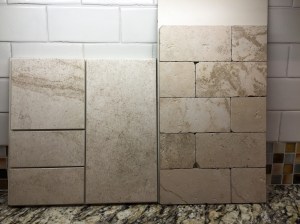
The winning floor tile is Roca Versailles Noce 12×24 (actually modular metric equivalent). This tile harmonizes with the cabinets and countertop. The base color is beige with brown, green, grey, and other colors in a faux travertine pattern. This is a HD printed pattern so it is likely that there won’t be two tiles alike in the floor. I’ve told the dogs that this tile is pre-tracked so they won’t be able to mess it up.

20150721-IMG_1365-1

The winning backsplash tile is Crossfield White Plains 3×6 loose tile shown on the left. The granite below is an example of St Cecelia Light that is much lighter than my material. Same tones, just more white feldspar in the stone. This tile is porcelain HD printed with a light pattern that should echo the colors in the granite.

20150724-IMG_1369-2

Categories
Home Remodeling

Visiting Tile Shops

In a large metropolitan area, such as the Virginia Tidewater, there are a number of tile stores, some manufacturer specific and some representing several manufacturers. You’d think tile shopping would be simple but it is not.

Home Depot and Loews

They have about everything including tile. The thing to watch about the big box stores is that they may have tile from multiple manufacturing batches on the shelf. Colors can vary from batch to batch so if you buy from them, buy only unopened boxes and check that each box is from the same production lot.

The Local Stores

Florida Tile and Dal Tile (a Mohawk company) have local brand stores in the 757. The Florida store is the nicer of the two with attractive displays and attention to light color quality in the store. Both are frustrating because they organize the tiles by marketing series rather than in some useful way.

We also have Morris Tile, Mosaic Tile, and Triton Stone, two independent tile distributors and a stone yard that sell to the trade and to DIY. These shops carry tiles from multiple manufacturers but are very different in their approach to curating what they offer. Mosaic Tile is the shop that gets it right. What Mosaic does that the others don’t is to curate the tiles by look and color. For example, all the beige faux stone tiles are together. And the beige wood look and beige solid color, and beige granite, marble, and travertine stone tiles are together. It’s genius. So obvious but, in the 757, only Mosaic does it.

And for my project the winner is Mosaic

Mosaic where I made my selections. That said, my contractor hires the tile installer and the installer or contractor actually buys material. Both my builder and a retired kitchen designer friend suggested Mosaic and I’m glad I made the trip. Their shop is newly moved to former Hanger 9 flight simulator arcade near Lynnhaven Blvd in Virginia Beach. Mosaic remodeled this old warehouse building near Barrett Auctions to have a spacious layout that is greyhound friendly and allowed me to bring Missy and Nick in. The perimeter of the store has a number of example kitchen and bath installations that you can use for inspiration. The receptionist explained the store organization and turned us loose to browse.

It was easy to find the look i desired and the colors I was after. I was able to find a nice creamy faux travertine that would harmonize nicely with cherry finished maple cabinets and the likely granite contenders. Once I found what I was looking for, they made a record of my preferences, let me check out a sample, and sent me on my way with a data sheet that my installer could use to select the materials he needed to do the installation.

At the other shops it was hard to find the Goldie Locks tile, the one with enough color and pattern to be interesting but not boring and not shouty. What Mosaic did was to split each manufacturer series by dominant color so the gray one would be with the grays, the green one with the greens, and the brown one with the browns. The effect of this is to group a slice of the color wheel by look making it easy to find that Goldie Locks pattern.

Mosaic’s Sample Policy

One unusual thing Mosaic does is to take a $10 deposit for each sample that will be refunded when the sample is returned. They really want their samples back. But they make it easy by attaching a printed label to each sample identifying the specific material and listing the related sizes and colors. This label clearly identifies the sample as a Mosaic sample so you can take it back to the proper shop.

The samples are usually of one of the mosaic sheets from the pattern and color. Mosaic mounted these to Masonite to protect them from damage and attached the label to the underside of the backer. The mounted sheets are easy to handle and give a more representative idea of the colors and patterns than is seen in a field tile from modern HDP printed patterns. Modern patterns are designed to cover 10×20 feet without repeats. Because they are mosaic sheets made by cutting and mounting bits of field tiles, the samples are several times the cost of a field tile. It is one thing to give away a $1 field tile and another to give away a $10 mosaic sheet.

I’ve got a collection of several samples from the other shops and I can’t remember what came from where to return them. But I have no skin in the game so they probably won’t go back. And to find related items, I have to go back to the website or PDF catalog.

Again genius and so simple and so obvious a practice you’d think it would be common across the industry.

Categories
Home Remodeling

At the stone yard

On Tuesday, Nick, Missy, and I hopped in the GTI to test the new EZpass with a trip to Triton Stone in Portsmouth, Virginia. Triton Stone is our local stone supplier. Triton imports granite, marble, onyx, and quartzite from suppliers world wide. Being a natural product, each piece of stone is unique. The primary constituents of granite are quartz, feldspar, and mica. It is common for garnet to be present also. Impurities influence the color of the garnet, feldspar, quartz, and mica. The relative amounts and arrangement of the different constituents give the stone its look.

What’s in a Name

The producer names each granite. The name suggests a pattern and color and means something to those in the trade but are opaque to those not in the trade. Often the name reflects the primary colors and pattern complexity of the stone and perhaps some of the secondary colors in the stone. Pricing of stone is like pricing of diamonds. If it can be made to appear exotic, rare, or somewhat unique, it costs more. If it is in fashion, it costs more. If the yard is full of it, it costs less. The common stones are

  • Saint Cecelia, and Saint Cecelia Extra A
  • Venetian Ice, Gold, etc
  • Giallo Fioritto (pictured)
  • Giallo Ornamental
  • Kashmir White

These stones have a medium pattern, warm coloring except for the Kashmir White which is a bit icy to my eyes, and a peppering of garnet. These inexpensive stones do not have strong veining.

The Giallo Fioritto stone pictured is a low tier stone. Finely patterned stone, uniformly colored white, ivory, cream, or grey stone, and granite with pronounced feldspar (solid color) or quartz (crystal white or gray) bands are mid-tier or upper tier stones. These stones ofter have red, green or blue accent color mixed with ivory or white.The really unusual colors and patterns of quartzite and onyx are exotic stones.  Strongly colored stones with dramatic structural elements to the pattern are exotic stones.

Remembering what you saw

I can’t remember what a stone looks like so I took photos. On a second trip with overcast sky (high color temperature indirect light), I took photos of stones that were my taste including the end label in the photograph. When I returned home, I spooled the photos off, cropped, straightened, and corrected for illumination to make images like the feature image above. These are proving a big help in remembering what i’ve seen. Unlike Internet images, these are the stones actually available for purchase and the images have not had the snot compressed out of them for quick loading. They are high resolution low compression JPEGS shot using an iPhone 6+. This technique works nicely for the low and mid tier stones. For upper tier and exotic stones, it will be less useful as important feature elements are located away from the label, the fancy stones are in the warehouse, and room is limited to compose photographs that include the stone’s dramatic features that you would be paying for. But you can capture the primary color and character of the stone.

One Name, Many Sources

Stones sharing a name may be from different parts of a single quarry or from one of several quarries that have similar color and pattern. Because stone color and pattern varies from one quarry to another and as a deposit is quarried, color and pattern match is best when the slabs are cut from a single part of the mountain and are used in order sliced. When looking at slabs, you will see that each has been numbered in slice order so they can be sold and used together. When you are choosing stone, you will not know how many will be needed but a small kitchen will require 1 to 2 slabs. A large high end project may require several. The number of slabs needed may rule out some lots of a given stone pattern.

When to use upper tier stone

Use of exotic stones makes sense when the finished stone will express the features that make the stone exotic. If you are cutting the stone for 24 inch counter tops, or cutting openings for sinks and cook tops, you should choose low and mid-tier stones because the final installation may require cutting out the large scale features that give a high tier stone its interest and drama. Tables and large island tops not having sink or cooktop cutouts are an appropriate use for upper tier stone.

Pricing Stone

Stone yards don’t talk prices to clients. The price of a slab at the port is relatively low. The handling of that slab from the port to your home raises the cost. Some factors influencing cost.

  • Freight cost from the port to the fabricator
  • Color and pattern rarity and complexity
  • The amount of cutting (time and abrasive use)
  • The amount of polishing
  • The sealing techniques used
  • The edge treatment used (fancy is more)
  • The cutting of openings
  • The amount of salable remnant left
  • The amount of waste

Different stone yards have different schema for classifying stones by price. Triton talks low, medium, high, and exotic. Other yards have more bands within the readily available stones and several tiers of exotic prices, usually 3, and Trump/Romney stone. No yard associates a price with any of these price bands, just an ordering from low to high that can be determined from the price band name.

Finished Price and Job Price

My contractor priced my job using an allowance of $52 per square foot which covers the more common stones, finishes, edge treatments and cutting of cooktop and sink openings, and reasonable waste. If the finished cost of the stone is more or less, the job cost is adjusted at final settlement. Only the fabricator can get from a slab cost to a delivered cost. The yard can’t price the stone for the client because they don’t know how many slabs a job will require, the amount of salable remnant, or the cost to finish the stone for its intended use.

When to Pick Stone

You need to pick stone pretty early in the project process, first during conceptual design so the contractor can set an allowance rate and again before cabinet fabrication. Because price changes with availability, you need to do it using this two step method.

During bid solicitation pick a reference stone that reflects your taste in color and pattern so the contractor can set an appropriate allowance rate. Once the project is underway, select the specific stone and slabs from the price band used for the estimate. Your contractor will adjust the job price at settlement to reflect the as-built cost of the stone.

Keep in mind that all stone that can be seen together should come from a single slab or consecutive slabs. Stone from different queries or different faces on the mountain will have different color and pattern so all stone that you want matched must be bought together from consecutive slabs. This is why you make a second trip with your fabricator to get the correct number of consecutive slabs.

Stone Pick Drives Tile and Backsplash Picks

The stone hue and saturation drives the tile color and pattern. There is an art to picking tile that is compatible with the color and pattern of your stone. The tile should repeat the hues of the stone but have a simpler pattern so that it is not competing with it. Generally, the tile colors will be less saturated than those in the stone and the pattern will be larger than that of the stone, expressed as random areas of two or three harmonious hues with linear and point features in contrasting colors. My taste runs to a honed finish floor to have good wet slip resistance, hide the week’s dust and dog hair, and avoid glare from overhead lights.

The stone pick also drives the backsplash material pick. Again, the idea is to harmonize with the stone by echoing the field color form the stone with less saturation or by picking a complementary color at low saturation. Travertine or travertine with mosaic feature band are popular. I prefer a honed finish for easy cleaning and a low glare look with the stone variation providing some interest.

Categories
Photography

Introducing Adobe Lightroom

Apple is replacing Aperture and iPhoto with a new application Photos to replace both. Is it time to make the move to Adobe Photoshop Lightroom? A presentation at Hampton Roads Digital Shutterbugs prompted me to reexamine Lightroom after an initial attempt to evaluate the product went down in flames. This article describes my experiences during the one-month trial of Lightroom 6 I was able to attempt in April and May of 2015.

Apple’s new Photos tool is a very capable photo collection manager and photo editor designed for broad use by casual and beginning amateur photographers. It makes it very easy to produce high quality images from captures taken with some attention to composition and lighting and to save many less carefully made images.

Adobe Photoshop Lightroom is designed for use by the advanced amateur photographer and graphic arts professionals. Like Photos, Lightroom makes it easy to organize a photo library and perform basic correction of images. Lightroom goes beyond Photos in its ability to perform sophisticated manipulation of images and image regions. Where Photos makes coordinated model driven image alterations, Lightroom offers extensive creative control of individual manipulations but is extensible using preset libraries and editing plugins to perform sophisticated manipulations with Photos-like ease of use. Lightroom appears to offer a range of image similarity transforms not found in Photos to correct lens distortion, chromatic aberration, and 3-D perspective.

Reference 4 is a link to Adobe’s Lightroom introductory tutorials. Working through these tutorials is a good way to learn enough about Lightroom to get started with the program.

Reference 5 is a link to a set of tutorials introducing various digital photography techniques and the associated rendering techniques in Lightroom.

References

  1. http://www.hrdshutterbugclub.org
  2. https://www.adobe.com
  3. https://helpx.adobe.com/lightroom/kb/lightroom-gpu-faq.html
  4. https://helpx.adobe.com/lightroom.html?promoid=KSKAX
  5. https://helpx.adobe.com/creative-cloud/tutorials-photography-jumpstart.html?set=lightroom–get-started–more-step-by-step

Adobe Photoshop Lightroom

When Apple announced that it was discontinuing Aperture, Adobe pitched Adobe Photoshop Lightroom Creative Cloud to Apple users. Adobe is trying to move its products from a product model in which you receive a perpetual license to a program version to a subscription model in which you pay by the month to use a group of products in their current versions. For $10 per month, you can use Adobe Lightroom and Adobe Photoshop and stash some stuff on Adobe’s cloud storage. As new versions are released the Creative Cloud application manager will fetch and install them for you so you are always up to date.

First Impressions

Lightroom strikes a balance between capability and simplicity of use. Lightroom’s design makes it easy to import images, make basic corrections, tag and collect images, and associate images with clients and client projects. The more sophisticated features of the develop module allow basic tilt correction and cropping, perspective correction in the manner of tilts and swings, application of transformations to multiple portions of an image, and sophisticated manipulation of color and contrast using tonal curves. Lightroom is also able to correct lens distortions and chromatic aberration.

Installing a Trial Version

If you visit http://Adobe.com, you can quickly navigate to special offers for photographers. Adobe is tiering its products for various use cases including graphic arts students, enthusiast photographers, professional photographers, and those working as graphic arts professionals. The initial links let you start a 1 month trial of Creative Cloud for photographers. This trial allows you to use Photoshop and Lightroom for one month.

If you follow the link, it will download an OS X disk image that contains the Creative Cloud installer. CC Installer, when launched, will install Lightroom. If you wish to install Photoshop also, CC Installer will do this for you.

It took me several tries to get a good installation of CC Installer that would actually install Lightroom in a form that could be launched. I believe this was because I had some legacy cruft from a trial of an older version (4?) lying around. I used Clean My Mac to slaughter everything Adobe and attempted a fresh installation that went successfully.

When you launch Lightroom, Creative Cloud application manager actually does the deed. At launch, it will check for the availability of updated programs and will offer the chance to install them. Your subscription entitles you to updates as they are released. Adobe also offers a traditional single user license that does not include updates.

Introducing Oswald, My Mac Mini

Oswald is a 2009 Intel Core 2 Duo Mac Mini with nVidia GeForce 9400 graphics. In 2014, the machine’s hard disk failed. I took the opportunity to perform a disk transplant and memory transplant. The machine now has 8 GB of main memory and 512 GB of SSD storage. The SSD is a Crucial solid state SATA drive. I chose Crucial for both the memory and disk for the convenience of a single order.

I mention Oswald’s internals because Lightroom 6 is smart enough to use the video hardware to do image transformations. Reference 3 describes the system requirements needed to use Lightroom and Lightroom’s use of the machine’s GPU.

On Oswald, I’ve found Lightroom to be responsive for importing and editing using this equipment. The smart thumbnail step in the importing process is slow but runs in a background thread that permits responsive use of the editor. With 8GB of memory, I’ve seen no evidence of paging in Lightroom.

Initializing the Lightroom Image Library

Lightroom keeps its data in two directories. On Mac OS X these are ~/Pictures/Lightroom and ~/Pictures/Lightroom Masters. The Lightroom directory contains Lightroom’s metadata about your images. Lightroom Masters contains the actual raw or other image files. The metadata describes each version of an image that you make. The metadata also includes your copyright, license grant, keyword tags, camera, lens, exposure, date and time of capture, GPS coordinates of capture, and other information about the image produced by the camera, added by the editor, or added by Lightroom.

The metadata contains a recipe for making each version of the image. The recipe contains a reference to the location of the image file in Lightroom Masters. If you need to rename an image file, you must use Lightroom to make the change because it must update the name in the Lightroom metadata. Similarly, if you move the library, Lightroom needs to update the file locations in its catalog.

Lightroom metadata allows you to assign images to collections. A collection is a group of images that are related in some way. For example, you can organize collections by client and project or create smart collections that include images having selected metadata values like camera, lens, date captured, or selected keywords.

Importing Images into Lightroom

Next I’ll describe the image importing process. This process imports your existing image files and new images from your cameras or their removable storage.

The importing process keeps selected metadata produced by the camera and some metadata added by other image management programs. For example, Lightroom can preserve Apple Aperture or iPhoto keywords but not rendering instructions.

Importing from Aperture

Lightroom is able to import Aperture 3 libraries. The Aperture 3 format is common to iPhoto and Aperture so both are covered. Lightroom maps each Aperture Project or Album into a Lightroom Collection. Collections may contain collections. The import of my library produced some empty collections. When this happened, the collection usually had an algorithmic numeric name rather than a recognizable name based on a date or given by me in the original library. Once the import completes, you may want to reorganize this part of the library using a recognizable structure and naming.

Importing your Aperture library uses a plugin found on the File -> Plugin Extras -> Import from Aperture Library menu item. Although not intuitive,  Adobe clearly explains this in the getting started tutorials. I believe they chose to put this tool here because it is a one time process. My library took a couple of hours to process so put this operation on at bedtime.

Importing from My Sony Alpha 65

Use the Import button down on the bottom toolbar to import photos from a device (iPhone or camera) or from the file system. Lightroom is aware of device raw file formats but leaves you on your own to find the directory on the device media to import. I had to hike through the camera SD card file tree to find where it kept the photos. Once located, it brought in the raw file, jpeg file, and metadata into the Current Import in the Catalog. An import option allows you to import into collection Quick Collection which you can rename after the import.

Lightroom lets you build preview images as part of the import process. This can take a while and tends to peg out both processors on my early 2009 Mac Mini (8 GB main memory, 512 GB SSD system volume). Lightroom will tell you what it is currently doing in a little status pane in the upper left corner of its main window.

Importing From My iPhone 6+

When you connect an iPhone, Lightroom will recognize that it is present and offer it as a source. Lightroom is aware of the iPhone camera’s file structure and will locate the photos and movies without user assistance.

Lightroom Organizing Model

In this section, we’ll look briefly at where Lightroom keeps your photos and how it organizes them.

Where Your Photos Are

Lightroom keeps your raw and jpeg files in the file system. If your Lightroom database is in Pictures, your image files will be in Pictures/Lightroom Masters. Lightroom keeps its versions data in Pictures/Lightroom.  If you wish to move the Lightroom directories elsewhere, you must use Lightroom to make the move because the version files contain references to the original image location. To properly move the library to another disk, Lightroom must revise all of these references to use the new locations. This gives some insight into Apple’s decision to keep the Aperture and Photos image libraries as opaque objects using Core Data. Given Adobe’s desire to work across platforms, they chose to stay in the file system.

If you look at the Lightroom Masters directory, you will see that Lightroom keeps your images by date organized by Year, Month, and Day. The day folders are named using numeric dates yyyy-mm-dd making it easy to browse the file system to see what is available. Note that Lightroom creates a folder for each day of the month and that some may be empty.

The files that you see will be the unedited files. Lightroom does its magic by recording the sequence of editing actions that you take and applying them to render the edited image when it is needed. It is like Aperture and Photos in this way. No editing actions you take will damage the original capture and you can always get the original back to start over or to make a new rendered version for a different purpose.

Overlaying Order on the Masters

Lightroom provides several organizing models that you can use to group images. These include

  • Collections containing collections or images
  • Smart Collections, a set of images selected by query on image metadata (camera, date, keywords, and many more)
  • Folders within a day folder to group images

Regular Collections

When you do camera or file system import, the importer gives you the following collection options.

  • Add to the quick collection
  • Add to an existing collection
  • Add to a new collection

As collections can contain collections, it becomes possible for a working pro to collect photos by client, client project, and project shoot creating the collections at the time of import. The file handling sidebar provides the collection options, allows you to choose one of the existing collections, or to create a new collection for the import.

Smart Collections

Smart collections dynamically group images into collections based on meta data attributes. The smart collection editor lets you build a ruleset used to select the images for the collection. The metadata include camera, lens, image capture data, and keyword values.

My Initial Collection Practice

The importer also lets you apply keywords to all of the images in the import. I use the importer to apply classification attributes common to all of the images in the import. Once the import completes, I use the Library module to add subject specific and image specific keywords. For example, I add dog names, tag the image for the holiday card, etc.

I currently have smart collections for

  • Each dog
  • Each camera
  • Each residence
  • Beach photos
  • Thanksgiving and Christmas photos
  • Holiday cards
  • WHRV pet calendar candidates

Editing Basics

Lightroom offers two editing modes, library quick edits that can correct white balance, exposure, and other image basics and developing which brings the full powers of Lightroom to bare. Lightroom is able to import both still photos and video into the library. The library quick edits work with both stills and videos. The more detailed developing edits work only with still images.

Library Module Edits

The Library Module editor allows you to make global changes to the image, for example, changing color balance, applying an overall tonal correction, improving clarity, removing noise, or fiddling with vibrance and exposure. Lightroom applies these transformations to each pixel of the full image.

Developing Module Edits

The Develop module lets you make multiple versions of an image using techniques and tools that affect only part of the image. The tools include cropping and transformations inside masks or outside masks. Masks may be elliptical  regions or parallelogram regions. I’ve not done much with these.

The Develop module provides the following commonly used tools

  • Color/monochrome tool
  • Tone curve
  • Split toning of highlights and shadows
  • Sharpening tool
  • Noise reduction tool

These can be used to enhance an image or to do pseudo-color manipulation of the image. It is this module that you do renderings that mimic the traditional film materials.

Snapshots

Lightroom saves your editing actions on a stack. As you take each action, Lightroom pushes it on the stack. You can pop actions off to revert to an earlier version. At any point, you can make a named snapshot of the stack. You do this in the Develop module. Snapshots are most useful when you want save multiple evolving renderings of an image but only need to use one at a time. Snapshots can be named with the name indicating the intent behind the snapshot.

Versions

Lightroom’s Develop module lets you make virtual copies of an image by right clicking. To differentiate versions, it gives each a sequence number. Versions are useful when different renderings of an image are needed simultaneously and are most commonly used when different crops are needed or very different rendering treatments are needed. They are often used to make different crops or different color treatments of an image, for example, different film/print styles.