Do you use Harman International’s Roon Music Player and Library Management software? Do you store purchased music in Roon’s library for playback? Are you satisfied with your backup? This article may be just what you need to answer yes to this question.
The concepts described apply to all Roon installations and Linux hosts providing file services. The screens shown are specific to Ubuntu 22.04 with Cockpit and Houston UI installed. Note that the ZFS and Task Scheduler screens are unique to Houston UI. Further down, I’ll tell you how to obtain Houston UI and determine which Linux systems are currently supported.
Revisions
- 2026-11-18 — Original
References
- Roon Music Player and Library Product Description
- 45Drives Knowedge Base — Houston setup here.
- 45Drives software repository
Roon as a Music Library
Roon is computer application for playback of local music and music from your subscribed Qobuz or Tidal services. Roon is capable of storing music internally. Roon’s architecture keeps music on an attached USB disk or CIFS-mounted file system (Windows share for those not in the profession). To add a title to Roon, you drag and drop the file or album folder to the Roon Controller’s (the part of Roon that controls music playback), I usually add music to Roon using the Mac Mini where I’m writing this post. Roon copies the media to the library (or it can just index them in place). I use the copy method. The copy method allows you to pick the storage location to receive the new material.
Roon indexes each title by recording title, track title, and artist. Roon is clever to keep track of reissues and can store multiple version of a recording such as an LP transfer, the original digital release, and reissue releases. In the case of the Beatles, there are multiple reissues. And vault dives, and deluxe versions with previously unreleased tracks added. Roon deals with all this chaos. Roon searches let you find something. often by searching on a fragment of a lyric.
Where Roon Stores Music
When you install Roon, part of the setup process is to tell Roon where your music is to be stored (or is stored). Here, I have installed Roon ROCK (Roon Optimized Core Kit) on a System76 Meerkat compact system. This Roon software and other important stuff live on the Meerkat’s internal storage.
ROCK, by design, stores music on internal storage, attached storage, or network storage. Here at Dismal Manor, I chose to use attached SSD storage for music.
I found that things never came up in the proper order for a successful Roon start when power was restored. Roon would invariably look for the music before the shares were ready. So my nice ZFS file servers back up Roon music that Roon keeps on direct attached storage.
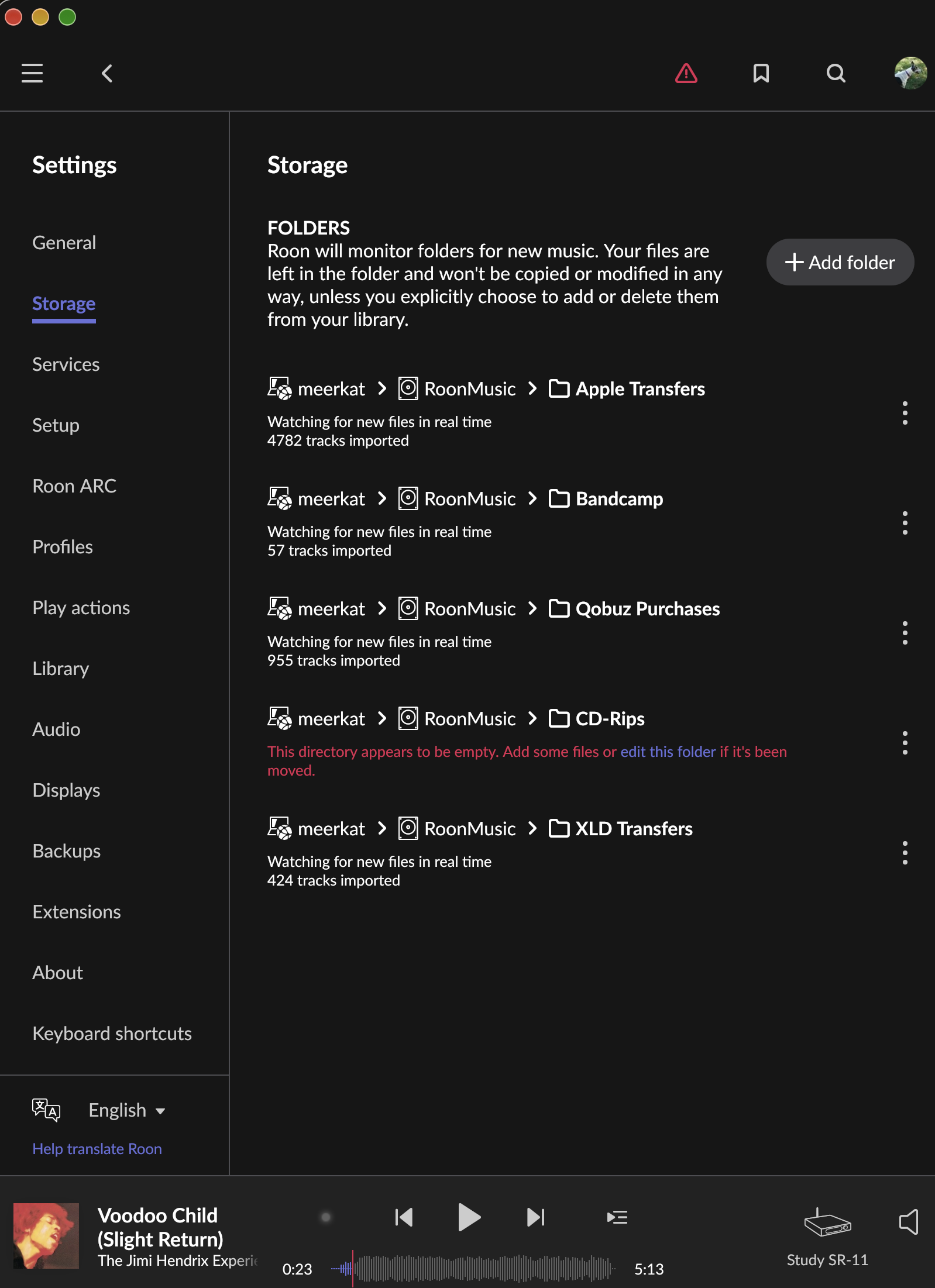
You can connect a disk directory as a music source using this dialog to add a dataset or a shared dataset.
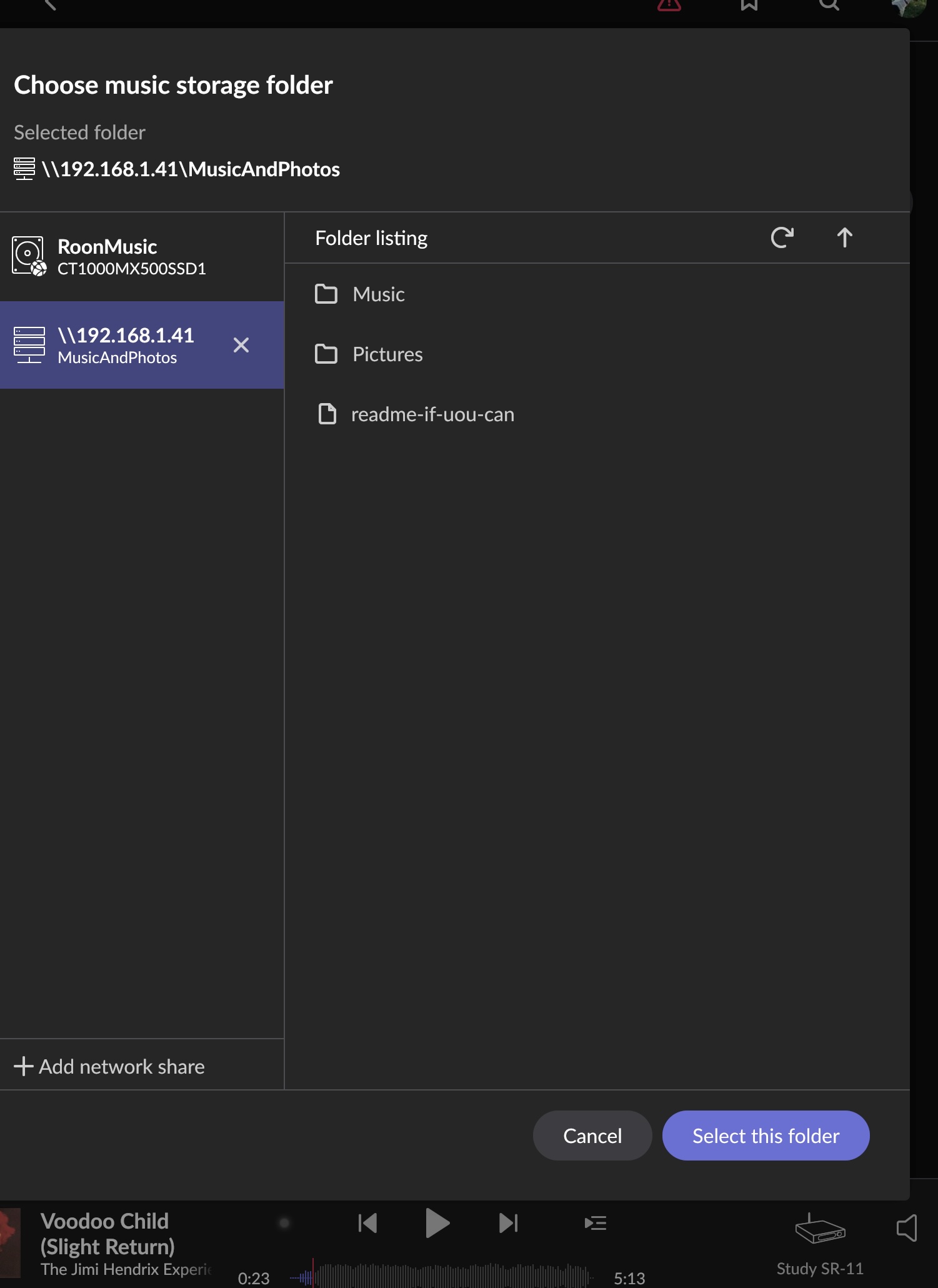
The first figure shows Roon’s internal data storage (its connected external USB drive). The second shows how CIFS music storage would be added. In this system, all of the music storage is directly attached.
The host serving the share backs up its contents. Roon does not back up its external storage. Rather, it serves it as a CIFS share to allow an independent system to make the backups. Below, I describe how I set up my Roon Music backups on one of my ZFS servers, a 45Drives 45HomeLab system with Cockpit and Houston UI installed.
The Dismal Manor Environment
A System76 Meerkat hosts Roon ROCK. ROCK is short for Roon Optimized Core Kit, a Linux release that includes Roon Core and Roon Bridge and just those Linux bits needed to run ROCK. ROCK’s drivers had been tuned for the Intel NUC series of computers, both those Intel-branded and those private-labeled such as my Meerkat.
Our fileserver is a 45Drives/45HomeLab HL-4 system running Ubuntu 22.04. Uname -a shows the following.
dave@rocky:~$ uname -aLinux rocky 6.8.0-149-generic #149~22.04.1-Ubuntu SMP PREEMPT_DYNAMIC Wed Oct 28 20:58:45 UTC x86_64 x86_64 x86_64 GNU/Linux
45Drives maintains Houston UI and Red Hat develops and maintains Cockpit. Cockpit has found its way into all of the major distributions but Houston UI remains pinned to specific Red Hat, Rocky, and Ubuntu releases, in my case, Ubuntu 22.04.
The backup architecture described here works with any Linux distribution. The Houston UI screens shown are specific to Ubuntu 22.04.
Reference [3] is the 45drives repository home page. There you can determine the versions of Ubuntu Linux, Rocky Linux, and Proxmox currently supported. There, you can also find a script to install the most recent repository and update the 45Drives packages.
Note that the 45Drives repository also includes support for the hardware maps, validated drivers for enterprise storage and network controllers, etc.
Chatting with Siri, Jammy Jellyfish software support expires in the spring of 2027 — like real soon now. Lucky me, I get to do a distribution upgrade soon. Ubuntu provides tools to roll forward from one LTS to the next. Once done, load the 45Drives repositories and follow their upgrade procedures. This is a topic for another day.
Backup Procedure
I have three Zetabyte File System servers, two TrueNAS Mini+ boxes and a big, strong, fast 45Drives HL4. I have the HL4 do the backup chores. This machine runs Ubuntu 22.04 LTS minimal workstation with Cockpit and Houston UI installed. The scheme of things is as follows
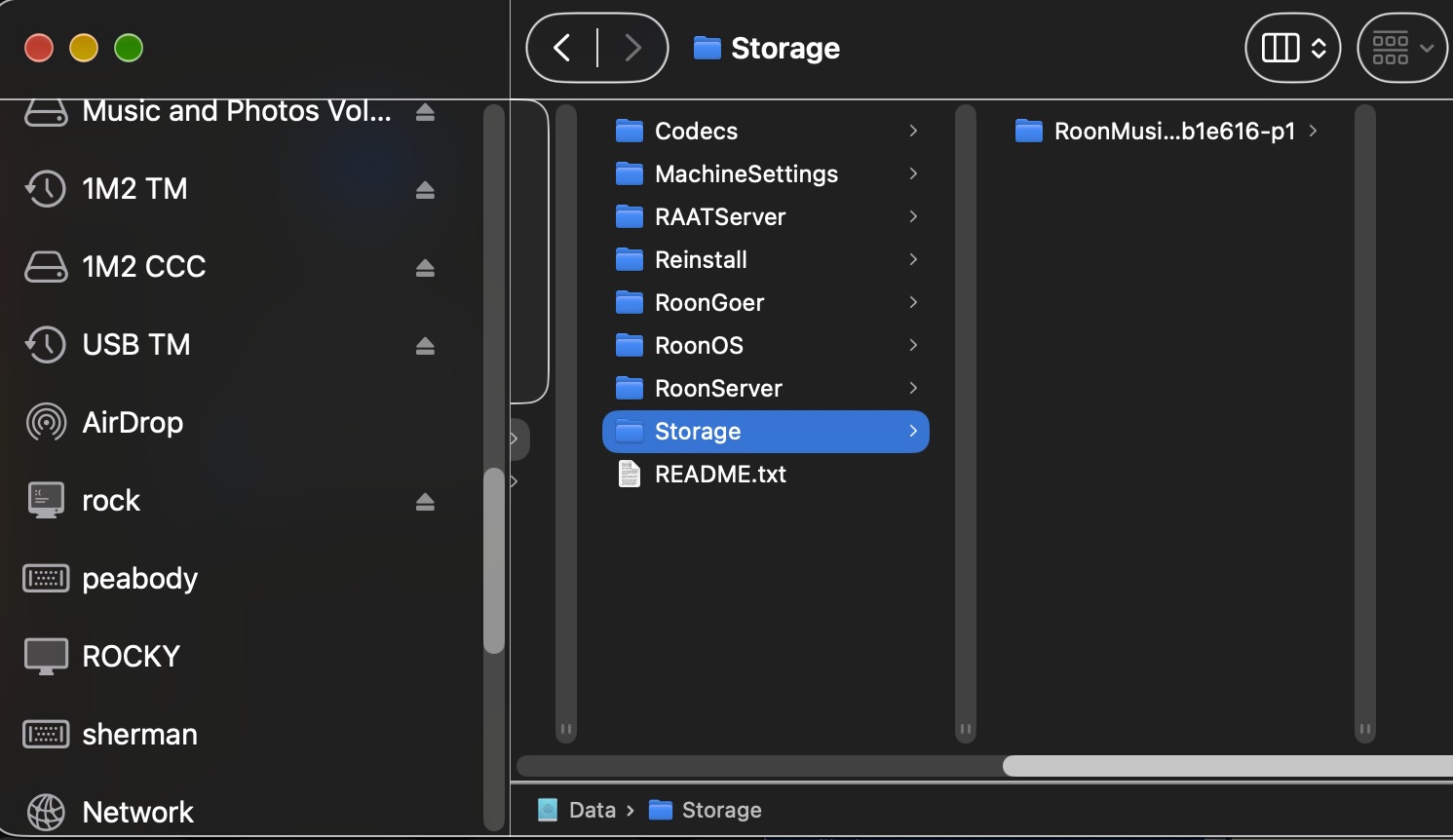
- Configure the HL4 to mount rock.local’s Data/Storage share. Select the Roon Music folder. That’s the root of the USB drive. To get there in Finder, select rock.local->Data->Storage->Volume-Name, in my case RoonMusic+UUID assigned at mount. Ubuntu and most Linux systems keep volumes differentiated by appending the device UUID. You will be adding a mount command /etc/fstab. This is standard Linux admin shtick. The /etc/fstab stanza for the CIFS mount appears below.
//192.168.1.33/Data/Storage/RoonMusic_CT1000MX_500SSD1_123456789094_c6339029-71bb-49fa-9937-3f7075b1e616-p1 /mnt/roon_music cifs guest,uid=1000,gid=1000,noauto,x-systemd.automount,x-systemd.idle-timeout=60 0 0
- I have mounted Roon’s music as /mnt/roon_music
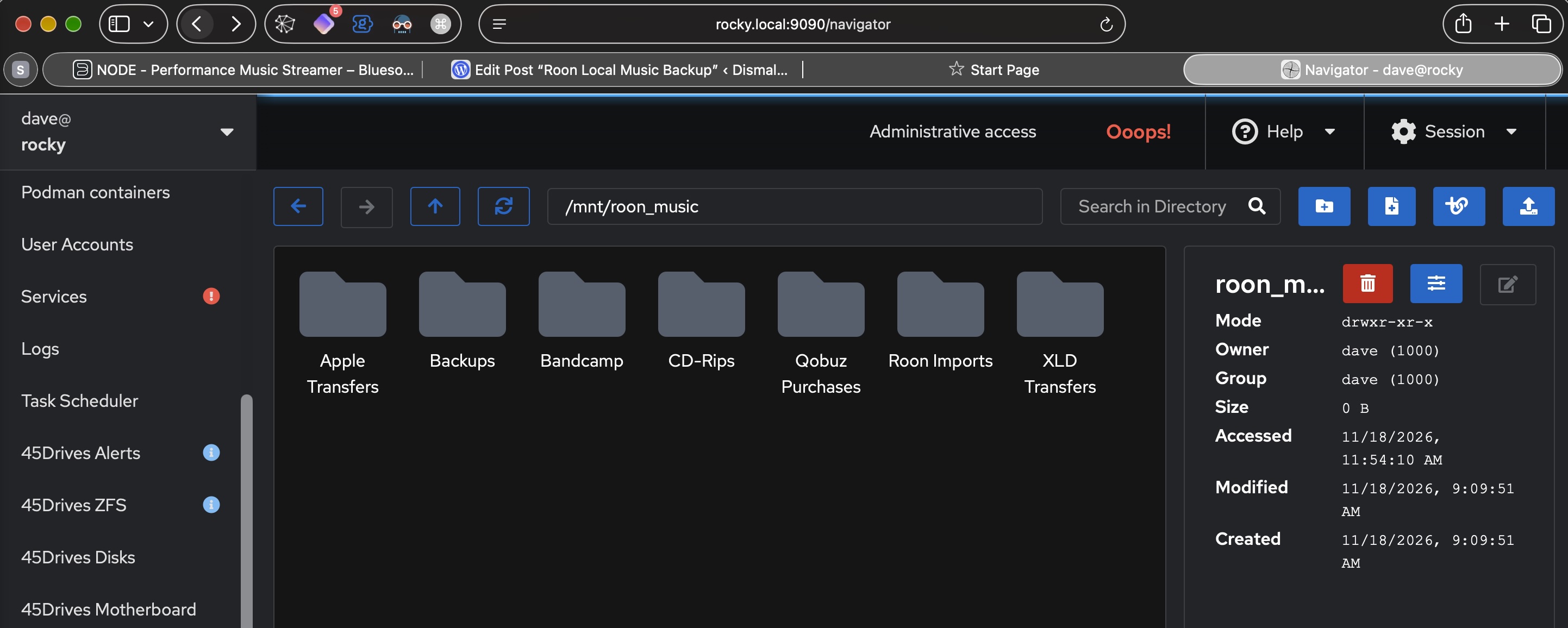
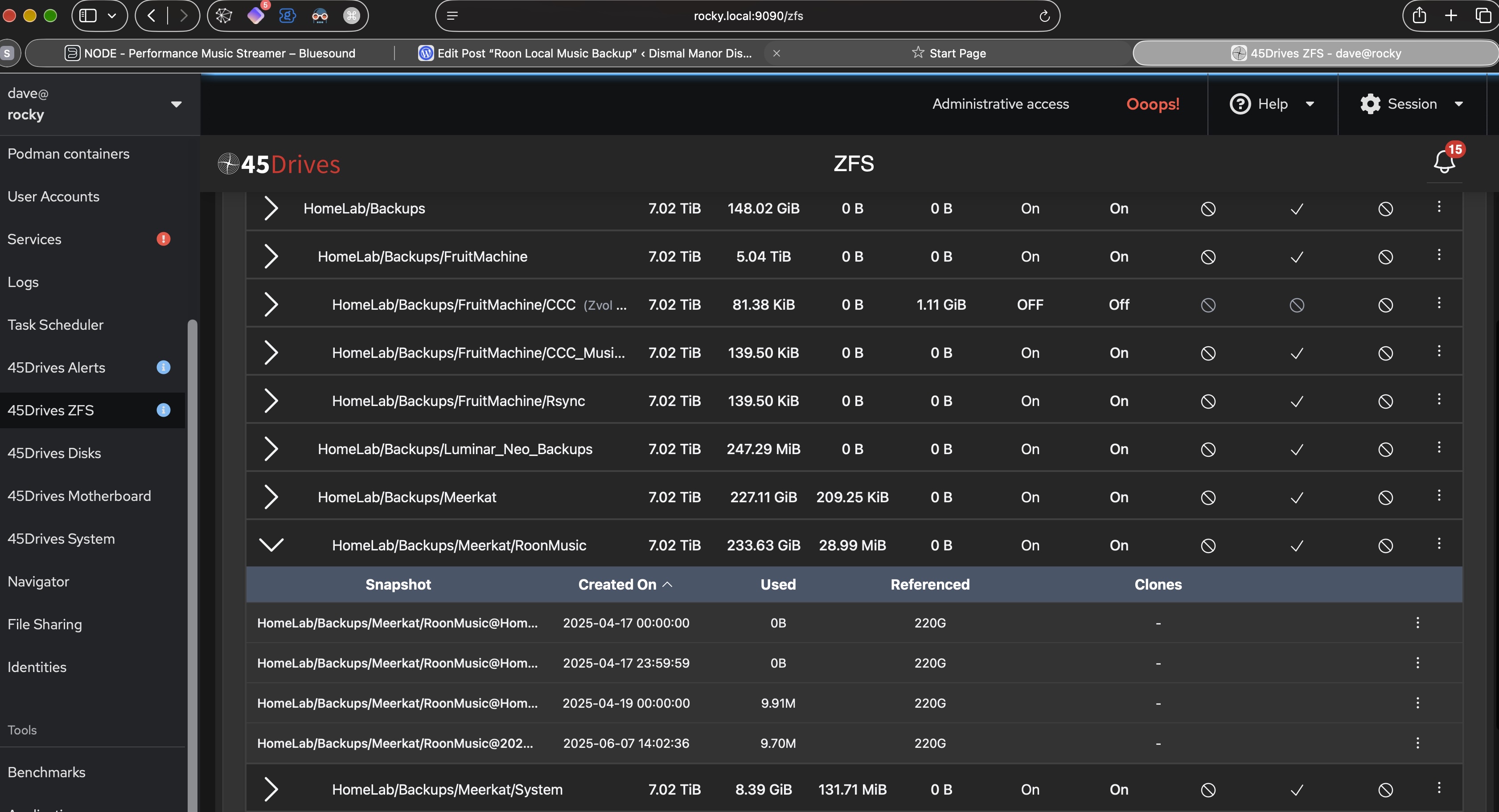
2. Create a 45HomeLab data set to receive the backup copy of the Roon Music disk. I use a regular dataset /HomeLab/Backups/Meerkat.
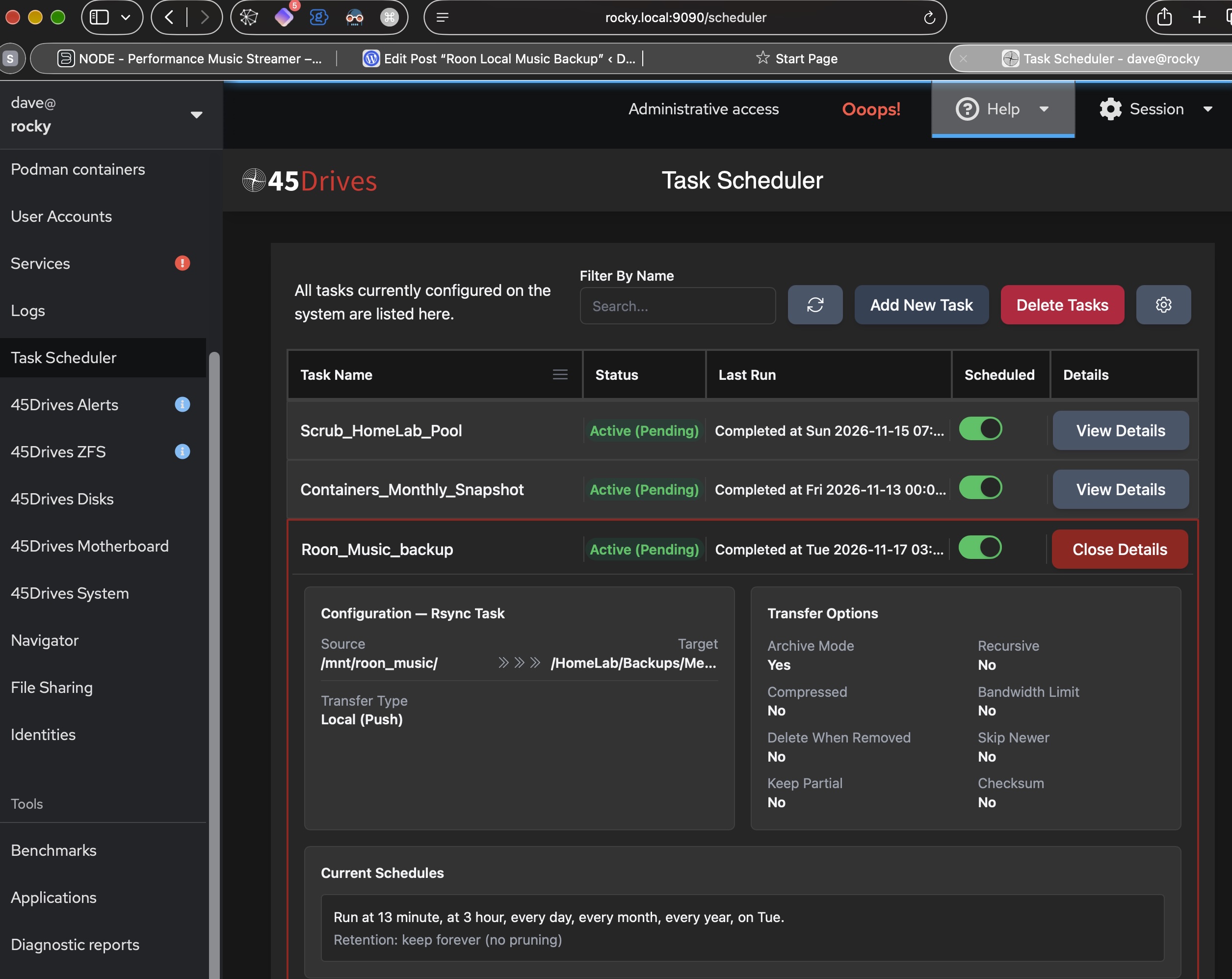
3. Set up a 45HomeLab rsync task to transfer the contents of the share to the backup dataset in the ZFS pool. Note that the closing slash (/mnt/roon_music/) is important. It specifies a recursive copy of the mounted dataset. Similarly, the replication target ends with a closing slash (/HomeLab/Backups/meerkat/RoonMusic/) indicates that the tree is to be replicated. Without the closing slash, all the files will be poured into the destination root.
4. And we snapshot the dataset periodically so that changes are saved. Should there be a mishap, we can revert to the saved snapshot.


You must be logged in to post a comment.